macOS updatesRelease notes
macOS Tahoe problems: Liquid Glass, battery drain, slowdowns and install errors
Short answer
Most complaints after updating to macOS 26 Tahoe fall into four groups: the new Liquid Glass look, battery drain, slowness in the first days, and installs that won't start or finish. Here's what to try for each, starting with the quickest fix.
On this page
Tone down Liquid Glass
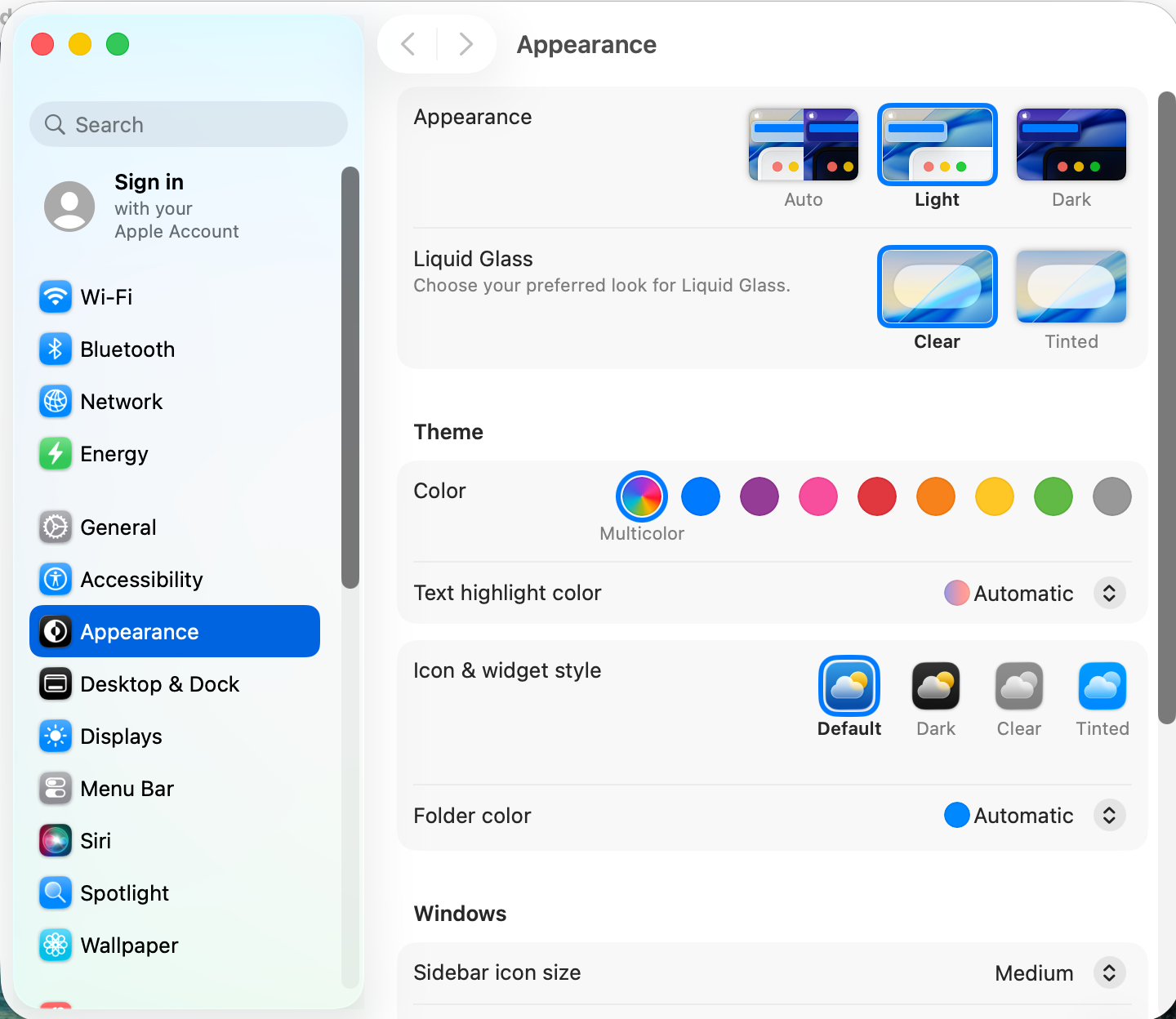
Liquid Glass is Tahoe's see-through design for the menu bar, Dock, sidebars and controls. You can't switch it off entirely, but you can make it much calmer:
- Reduce transparency: System Settings › Accessibility › Display › Reduce transparency. Glass surfaces become mostly solid, which also helps readability.
- Increase contrast: in the same pane, this adds borders around controls and buttons.
- Check Appearance: Tahoe updates have added more options for how glass looks, so look in System Settings › Appearance after each update.
- Menu bar background: look in System Settings › Menu Bar for the option to show the menu bar background if the see-through bar is hard to read.
Battery drains fast after the update
For the first few days after a major update, your Mac re-indexes Spotlight, re-scans photos and rebuilds caches. That uses a lot of power and usually settles on its own.
- Leave the Mac plugged in and awake overnight once, so the background work can finish.
- Open System Settings › Battery and look at the usage graph to see which apps use the most energy.
- Check Activity Monitor › Energy for an app at the top that you don't expect. Updating or removing it usually fixes the drain.
- If it's still bad after a week, turn on Low Power Mode in Battery settings while you investigate.
Mac slow after updating
- Give it a day or two for the same background indexing described above.
- Check login items: System Settings › General › Login Items & Extensions. Turn off apps you don't need at startup.
- Update your apps: older versions of utilities that hook into the menu bar, windows or the Dock are a common cause of lag on a new macOS.
- Reduce motion and transparency (above) make animations lighter on older Macs.
- Free up space: keep at least 10–15% of your disk free. Check in System Settings › General › Storage.
"macOS Tahoe cannot be installed" or the update won't download
- Check your Mac is supported. Tahoe runs on Apple silicon Macs and only a few recent Intel models, and Apple has said it's the last macOS release for Intel Macs. Check under Apple menu › About This Mac, then compare with Apple's compatibility list.
- Free up space. A major update needs far more free space than its download size. Aim for at least 25–30 GB free.
- Update stuck at "About 5 minutes remaining": give it an hour before doing anything. If nothing moves, restart and try again from System Settings › General › Software Update.
- Check the date, time and network. Wrong time settings or a VPN can block the download.
Thinking about macOS 27?
macOS 27 Golden Gate fixes several Tahoe complaints, including a slider for Liquid Glass and cleaner menus, but it has its own problems and needs an Apple silicon Mac. See what's new in macOS 27 and its known issues. Staying on Tahoe? Install the latest Tahoe update.
Other things that changed in Tahoe
- The Dock went missing or keeps hiding? See Dock not showing.
- Want windows side by side? See how to snap windows.
Other apps that can help
You don’t need any of these for the steps above. They go further in different ways, so pick what fits how you work.
| App | What it does | Price |
|---|---|---|
| Stats | CPU, memory, battery and network in the menu bar, to spot what's slowing the Mac | Free, open source |
| coconutBattery | Battery health and charge cycles | Free, Plus paid |
| AlDente | Charge limits and battery care | Free, Pro paid |
| OnyX | Maintenance tasks and hidden settings | Free |
| Ice | Hide and organize menu bar icons | Free, open source |
| Bartender | Hide and organize menu bar icons | Paid |
| Latest | Checks your apps for updates in one list | Free, open source |
Sources and further reading
- macOS Tahoe is compatible with these computers · Apple Support
- How to upgrade to macOS Tahoe 26 · Apple Support
- macOS Tahoe guide · 9to5Mac
- First impressions of macOS 26 Tahoe (discussion) · TidBITS Talk
- macOS Tahoe 26: bug fixes, changes and more · MacRumors Forums
- Usability bugs following update to Tahoe · Apple Community
Applies toTahoe