macOS updatesRelease notes
macOS 27.2: what's new, what it fixes, and should you install it
Short answer
macOS 27.2 is the first big update to macOS 27 Golden Gate. Apple released it on 26 October 2026 as build 26B123. It brings Siri AI to five more languages, redesigned brightness and volume sliders, Suggestions in Messages, and 263 security fixes. Install it: the security fixes alone are worth it. Don't expect it to fix Mission Control, though. Apple didn't list a fix, and testers still saw the problems in the betas.
On this page
What's new
- Siri AI in more languages: French, Japanese, Korean, Portuguese and Spanish join English. Siri can also remember useful context from earlier conversations.
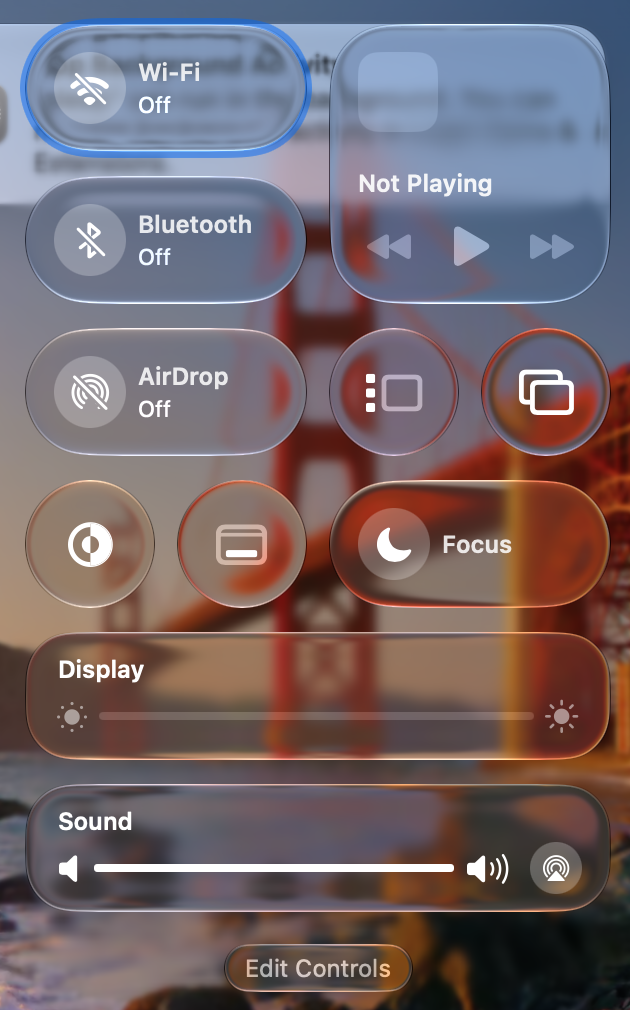
- New sliders: the brightness and volume sliders are redesigned.
- Suggestions in Messages: quick actions, such as adding an event to Calendar or a reminder, based on the conversation.
What it fixes
- 263 security fixes in total, 32 of them in Safari and WebKit.
- Upgrading to macOS 27 no longer removes Rosetta if you already had it installed.
- MacBook Neo no longer restarts unexpectedly while using an external camera.
- Remote access apps can move windows on the Mac they control again.
What it doesn't fix (yet)
Mission Control lag and black screens with several displays aren't on Apple's list, and many people still see them. Workarounds are in Mission Control black screen and lag on macOS 27. Everything else that's still open is in macOS 27 known issues.
Where's macOS 27.1?
There isn't one for the Mac. Version 27.1 only shipped for the iPhone Duo on its launch day, and Macs went straight from 27.0.1 to 27.2.
How to install
- Back up with Time Machine, or make sure your files are in iCloud.
- Open System Settings › General › Software Update.
- Click Update Now, and keep the Mac plugged in until it restarts.
Stuck? See can't update macOS.
Sources and further reading
- Apple releases macOS Golden Gate 27.2 · MacRumors
- macOS update tracker, October 2026 · Mr. Macintosh
- iOS 27.2 release notes: what shipped, and where 27.1 went · Blake Crosley
Applies tomacOS 27