Spaces and Mission ControlHow-to
How to show the desktop on a Mac: shortcuts, gestures and a hot corner
Short answer
Press Command F3 (F3 is the Mission Control key) or Fn F11. All windows slide to the edges and you see the desktop. Press the same keys again to bring the windows back. On a trackpad, spread your thumb and three fingers apart. You can also set a hot corner, or make a click on the wallpaper show the desktop.
On this page
Keyboard shortcuts
| Keys | What it does |
|---|---|
| Command F3 | Show the desktop (on keyboards where F3 is the Mission Control key) |
| Fn F11, or F11 on some keyboards | Show the desktop |
| Option Command H | Hide every app except the one in front |
| Option Command M | Minimize all windows of the front app |
Showing the desktop doesn't minimize or close anything. The windows come back exactly where they were.
Change the shortcut
- Open System Settings › Keyboard and click Keyboard Shortcuts….
- Choose Mission Control on the left.
- Double-click the shortcut next to Show Desktop and press the keys you want. Untick it to turn the shortcut off.
Trackpad gesture
Spread your thumb and three fingers apart to show the desktop; pinch them together to bring the windows back. If it does nothing, open System Settings › Trackpad › More Gestures and turn on Show Desktop.
Use a hot corner
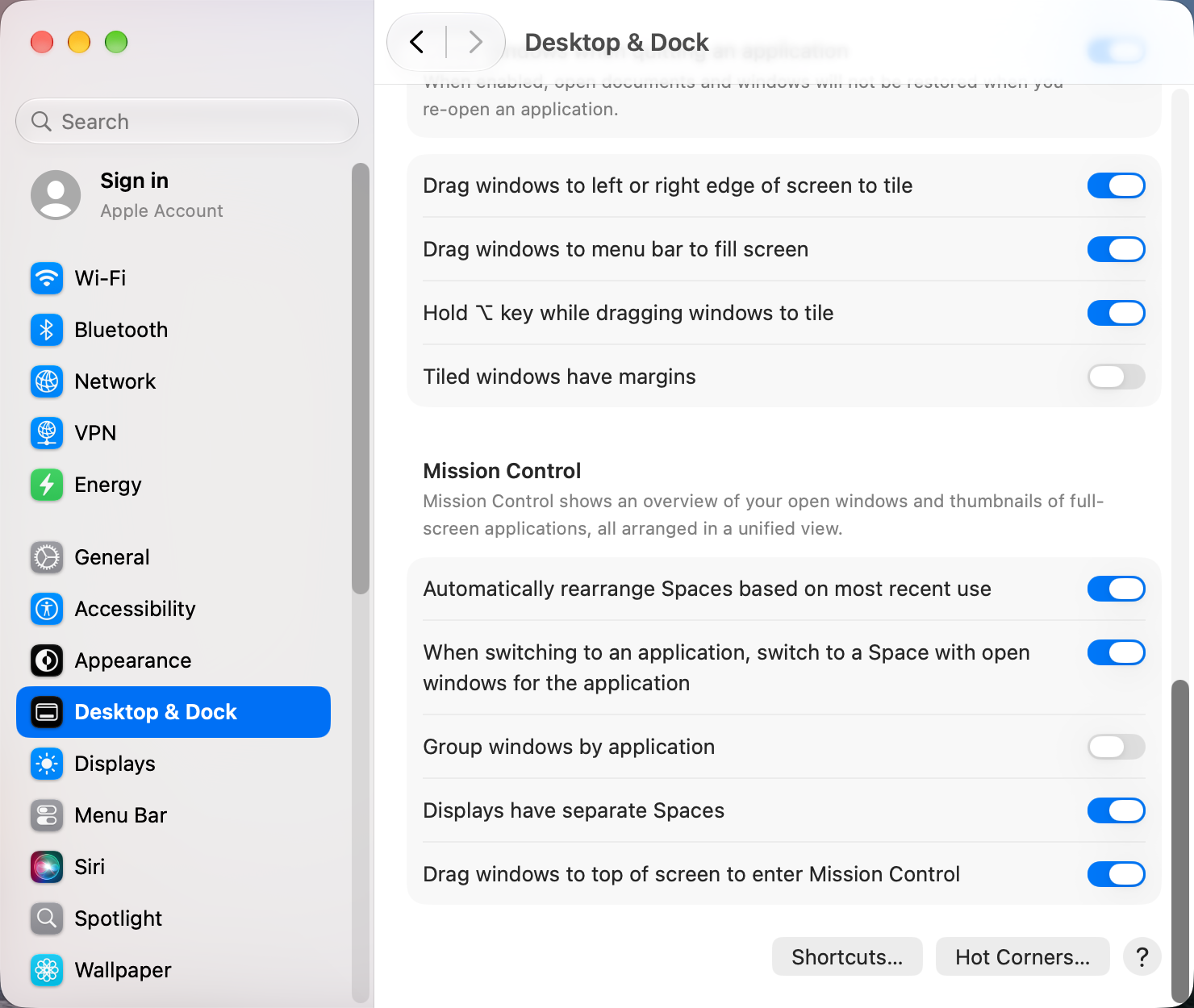
- Open System Settings › Desktop & Dock and click Hot Corners… at the bottom.
- Pick a corner and choose Desktop.
Hold Command or Option while choosing to make the corner work only with that key held, which stops accidental triggers. Details in how to set up hot corners.
Click the wallpaper to show the desktop
Since macOS Sonoma, clicking an empty part of the wallpaper can sweep every window away. It's controlled by Click wallpaper to show desktop in System Settings › Desktop & Dock:
- Always: any click on the wallpaper shows the desktop. Click it again to bring the windows back.
- Only in Stage Manager: the click works only while Stage Manager is on. Pick this if windows keep vanishing when you click beside them.
Desktop icons vanish after showing the desktop
Some Tahoe users report that desktop icons disappear after they bring the windows back. Showing the desktop again, or restarting Finder, brings them back: hold Option, Control-click the Finder icon in the Dock and choose Relaunch.
Want to clear the screen for good?
Showing the desktop only moves windows out of the way. To actually close or minimize a lot of windows quickly, see how to close windows faster.
Other apps that can help
You don’t need any of these for the steps above. They go further in different ways, so pick what fits how you work.
| App | What it does | Price |
|---|---|---|
| Raycast | Launcher that can hide all apps or quit them with a typed command | Free, Pro paid |
| BetterTouchTool | Assign Show Desktop or any other action to your own gesture, mouse button or shortcut | Paid, free trial |
| Hammerspoon | Script your own show-desktop or hide-all behaviour in Lua | Free, open source |
| Mission Boost Made by us | Close, minimize and quit windows inside Mission Control, plus side-by-side layouts from there | €9 once, free trial |
Sources and further reading
- Mac keyboard shortcuts · Apple Support
- Work in multiple spaces on Mac · Apple Support
- 4 ways to show desktop on a Mac · Guiding Tech
Applies tomacOS 27TahoeSequoia
Reader tips
No tips yet. If something else worked for you, or a step looks different on your Mac, add it here.