Turn off the Spaces animation on Mac, switch desktops faster, and stop them rearranging
Short answer
macOS has no switch that turns the Spaces animation off completely. The supported way is Reduce motion, which swaps the slide for a short fade. Combine it with direct shortcuts to each desktop, and switching feels close to instant.
Replace the slide with a fade
- Open System Settings › Accessibility › Motion. It's in the same place on macOS 27 and 26 Tahoe.
- Turn on Reduce motion.
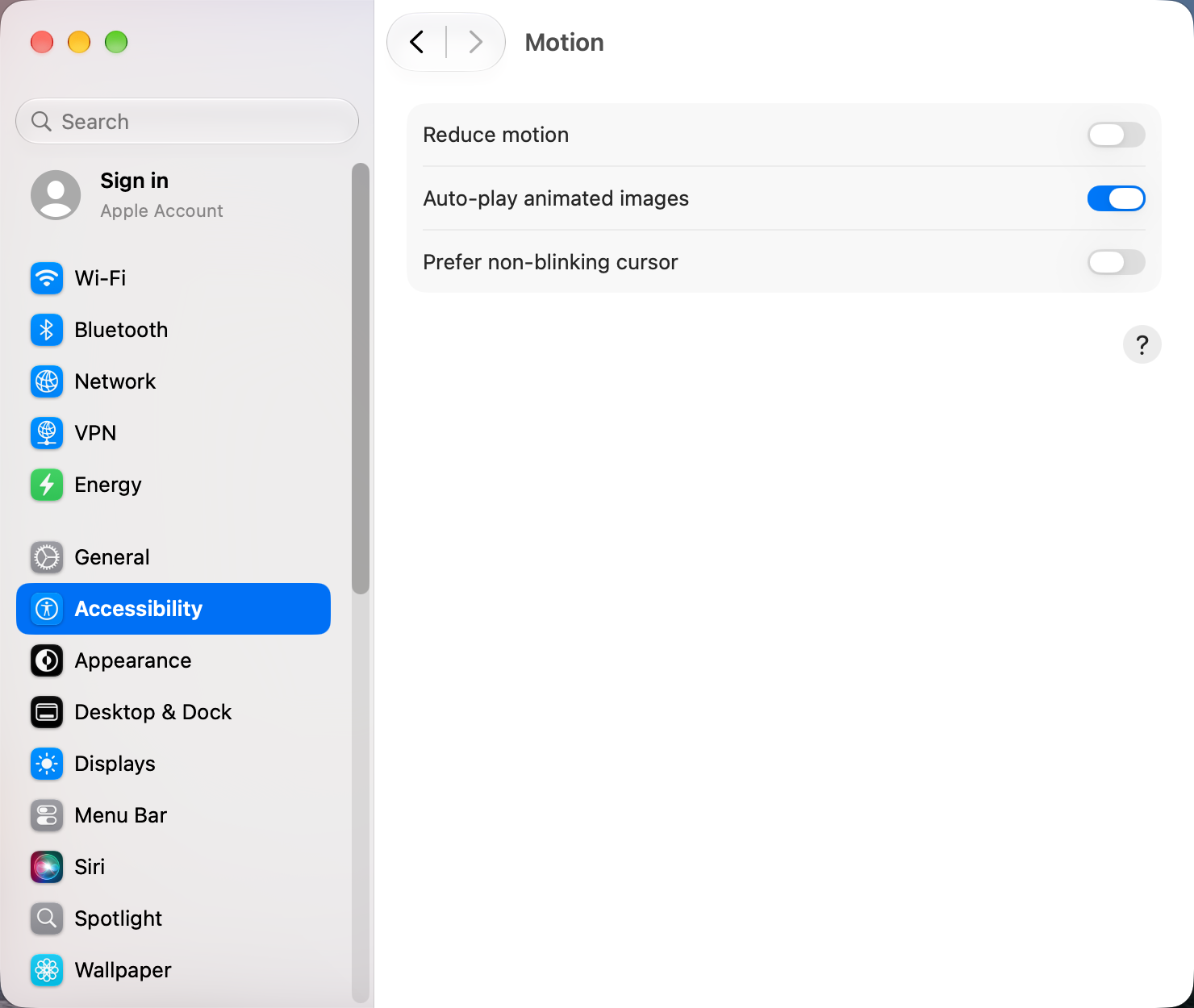
This also tones down other animations around the system, such as opening Mission Control. Most people who try it for Spaces keep it.
On macOS 27? If Spaces stutters rather than just feeling slow, that's a known bug. See Mission Control lag and black screens on macOS 27.
You'll find a Terminal command, workspaces-swoosh-animation-off, shared on many sites. It comes from older macOS versions and isn't reliable on current ones, so we don't recommend it.
Jump straight to a desktop
Switching with Control ← and Control → moves one Space at a time. Direct shortcuts take you to a specific desktop:
- Make sure the desktops exist first: open Mission Control and add them with the + button at the top right.
- Open System Settings › Keyboard › Keyboard Shortcuts… › Mission Control.
- Expand Mission Control and tick Switch to Desktop 1, Switch to Desktop 2 and so on. The defaults are Control 1, Control 2…
The same pane is where you change any Spaces shortcut, for example to move Move left a space off Control ← if an app needs that key.
Stop macOS rearranging your Spaces
By default, macOS reorders Spaces so the ones you used most recently sit closest. If your desktops keep changing places, turn that off:
- Open System Settings › Desktop & Dock and scroll to Mission Control.
- Turn off Automatically rearrange Spaces based on most recent use.
A related switch just below, When switching to an application, switch to a Space with open windows for the application, decides whether clicking an app in the Dock jumps you to another desktop. Turn it off if that surprises you.
Make Mission Control open faster
This widely used Terminal command shortens the Mission Control animation. It changes one Dock preference and is easy to undo.
defaults write com.apple.dock expose-animation-duration -float 0.1; killall DockTo go back to the normal speed:
defaults delete com.apple.dock expose-animation-duration; killall DockSpaces not working?
- Shortcuts do nothing: check they're ticked in Keyboard Shortcuts › Mission Control, and that the desktop number exists.
- Swipes don't switch: check System Settings › Trackpad › More Gestures › Swipe between full-screen applications.
- Second screen won't switch on its own: each display only gets its own Spaces when Displays have separate Spaces is on (needs a log out).
- Everything is stuck: restart the Dock, which also runs Mission Control and Spaces, with
killall Dockin Terminal.
Other apps that can help
You don’t need any of these for the steps above. They go further in different ways, so pick what fits how you work.
| App | What it does | Price |
|---|---|---|
| AeroSpace | i3-style tiling with its own instant workspaces | Free, open source |
| WhichSpace | Shows the current desktop number in the menu bar | Free, open source |
| Spaceman | Shows all your Spaces in the menu bar | Free, open source |
| BetterTouchTool | Custom gestures, shortcuts and hot-corner-like triggers | Paid |
| Hammerspoon | Script windows, Spaces and hot corners with Lua | Free, open source |
| Mission Boost Made by us | Close, minimize and quit windows inside Mission Control, plus side-by-side layouts from there | €9 once, free trial |
Sources and further reading
- Work in multiple Spaces on Mac · Apple Support
- The worst default setting on the Mac · MacSparky
- Dock and Mission Control defaults, with demos · macos-defaults.com