DockHow-to
How to make the Mac Dock hide and show faster (remove the auto-hide delay)
Short answer
Open Terminal and run defaults write com.apple.dock autohide-delay -float 0; killall Dock. The hidden Dock then appears as soon as the pointer reaches the edge, instead of after a short pause. To also make the slide quicker, run defaults write com.apple.dock autohide-time-modifier -float 0.15; killall Dock. Both work on Sequoia, Tahoe and macOS 27, and both can be undone with one line.
On this page
Turn auto-hide on or off
- Open System Settings › Desktop & Dock.
- Turn on Automatically hide and show the Dock.
The shortcut Option Command D switches auto-hide on and off from anywhere.
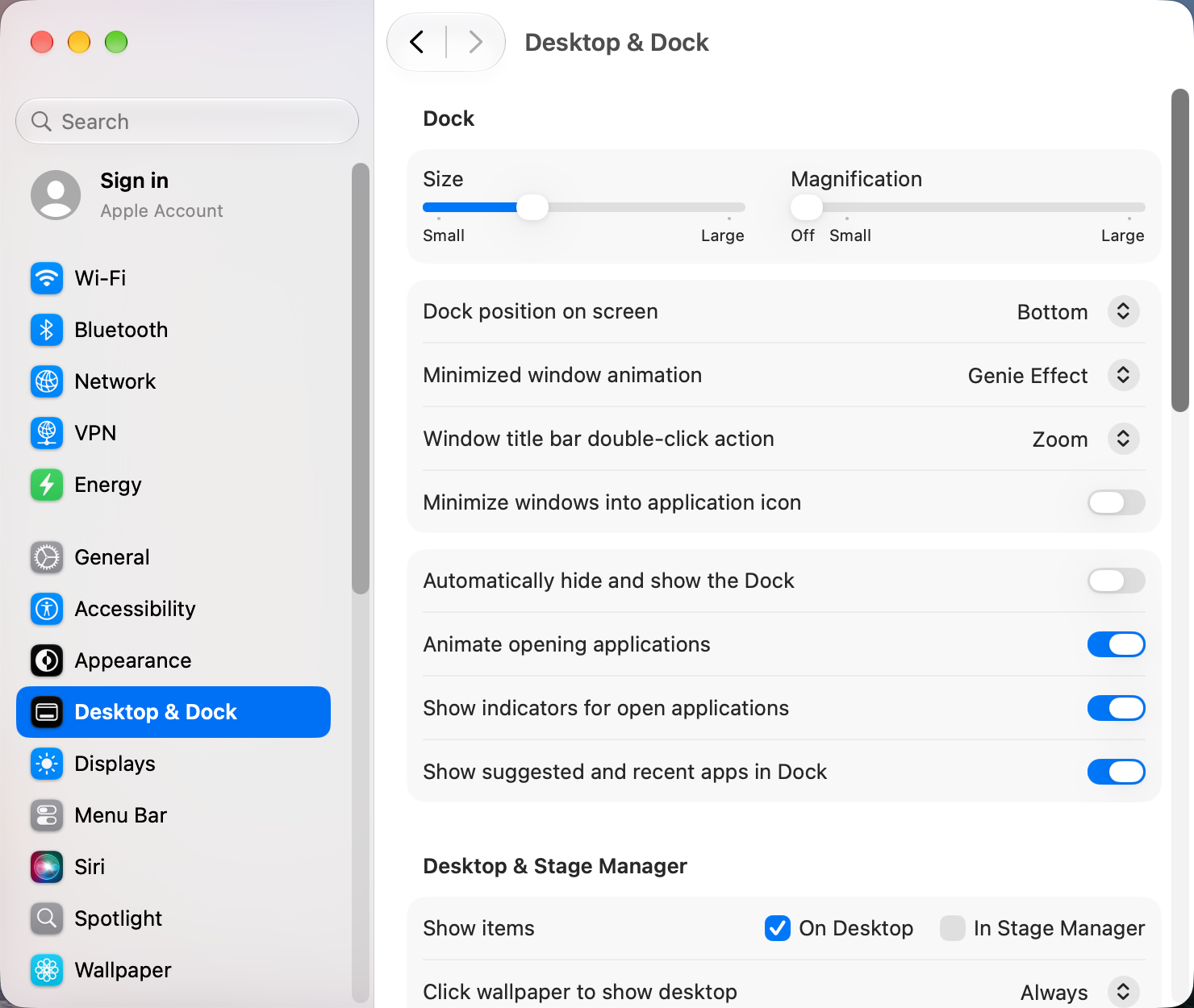
Remove the delay before the Dock appears
- Open Terminal (in Applications › Utilities, or search for it with Spotlight).
- Paste this line and press Return:
defaults write com.apple.dock autohide-delay -float 0; killall Dock - The Dock restarts. Move the pointer to the edge and it slides in straight away.
Any number works, in seconds. If 0 makes the Dock pop up too easily while you use the bottom of a window, try 0.2.
Speed up the slide animation
defaults write com.apple.dock autohide-time-modifier -float 0.15; killall DockSmaller numbers are faster. 0 removes the animation, so the Dock just appears and disappears.
Undo both
defaults delete com.apple.dock autohide-delay; defaults delete com.apple.dock autohide-time-modifier; killall DockThis puts back the normal delay and animation. It doesn't touch the apps in your Dock or its position.
Don't run defaults delete com.apple.dock without a setting name after it. That resets the whole Dock, including the apps you've added.
The Dock pops up by accident
- If you have several displays, the Dock also moves to whichever screen you push the pointer against. See Dock keeps moving to the other monitor.
- Put the Dock on the left or right with Dock position on screen in the same settings pane. A side Dock gets in the way less often.
- Set a small delay, such as
0.3, instead of 0.
The Dock won't hide, or won't come back
- Press Option Command D once, in case auto-hide was switched by accident.
- Restart the Dock with
killall Dockin Terminal. Your settings stay. - If the Dock is missing on an external monitor, see Dock not showing on your external monitor.
More Dock tweaks, such as spacers and faded icons for hidden apps, are in apps and settings that improve the Dock.
Other apps that can help
You don’t need any of these for the steps above. They go further in different ways, so pick what fits how you work.
| App | What it does | Price |
|---|---|---|
| TinkerTool | Turns hidden Dock settings, including the auto-hide delay, into checkboxes | Free |
| OnyX | Maintenance app with a Parameters section for the Dock and Finder | Free |
| DockDoor | Adds window previews when you hover over Dock icons | Free, open source |
| Mission Boost Made by us | Close, minimize and quit windows inside Mission Control, plus side-by-side layouts from there | €9 once, free trial |
Sources and further reading
- Mac keyboard shortcuts · Apple Support
- macOS defaults: Dock · macos-defaults.com
Applies tomacOS 27TahoeSequoia
Reader tips
No tips yet. If something else worked for you, or a step looks different on your Mac, add it here.