App comparisonsComparison
Apps that improve the Mac Dock: window previews, taskbars and tweaks
Short answer
The Dock can't show window previews on its own. DockDoor is the free way to add them, and uBar replaces the Dock with a taskbar if you're coming from Windows. Before installing anything, try the hidden settings below: you can remove the auto-hide delay, add spacers and stop the Dock showing recent apps without any app.
On this page
Built-in settings worth changing
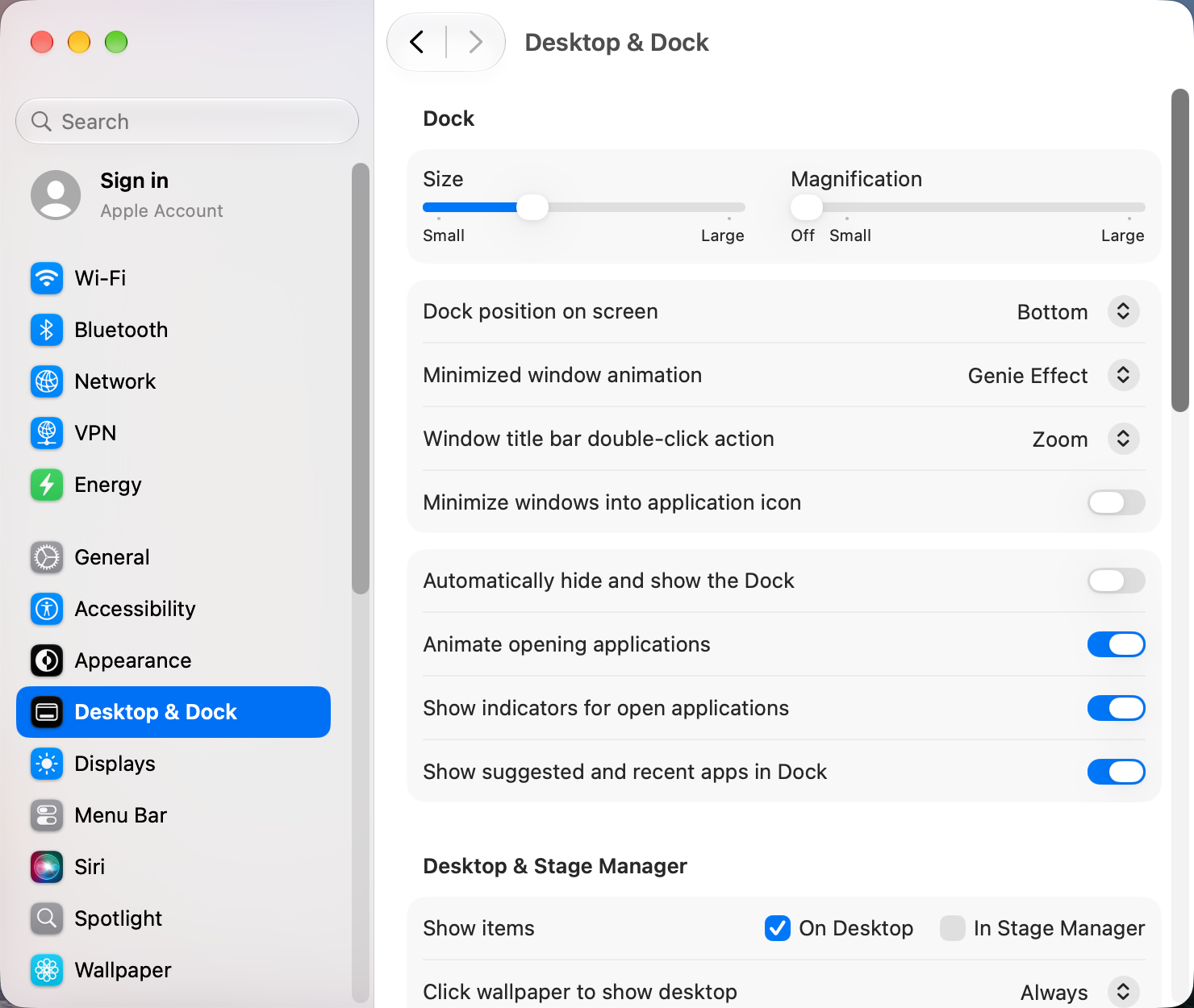
In System Settings › Desktop & Dock, turn off Show suggested and recent apps in Dock, and turn on Minimize windows into application icon to keep the Dock short.
Hidden settings, from Terminal
Make the Dock appear instantly when auto-hide is on:
defaults write com.apple.dock autohide-delay -float 0; killall DockUndo it with defaults delete com.apple.dock autohide-delay; killall Dock.
Add an empty spacer to group apps (drag it where you want, and right-click to remove):
defaults write com.apple.dock persistent-apps -array-add '{"tile-type"="spacer-tile";}'; killall DockShow hidden apps as faded icons:
defaults write com.apple.dock showhidden -bool true; killall DockHow to choose
- Window previews: DockDoor, free.
- A taskbar with every window listed: uBar.
- Keeping the Dock on one screen: no app needed. See Dock keeps moving to the other monitor.
Dock apps compared
Listed by what they do, with our own app last and marked.
| App | What it does | Price |
|---|---|---|
| DockDoor | Window previews when you hover a Dock icon, plus a window switcher | Free, open source |
| uBar | Replaces the Dock with a Windows-style taskbar | Paid |
| HyperDock | Window previews and window controls from the Dock (check macOS 27 support) | Paid |
| Mission Boost Made by us | Adds a Layouts button at the end of the Dock and close, minimize and quit in Mission Control | €9 once, free trial |
Sources and further reading
- Dock settings with before and after demos · macos-defaults.com
- Use the Dock on Mac · Apple Support