SettingsHow-to
How to stop apps opening at startup on Mac (login items, every version)
Short answer
Open System Settings › General › Login Items & Extensions (just Login Items on Sonoma). Select an app under Open at Login and click −. Background helpers are further down the same page, where you can switch each one off.
On this page
Remove apps that open at login
macOS 27, 26 and 15
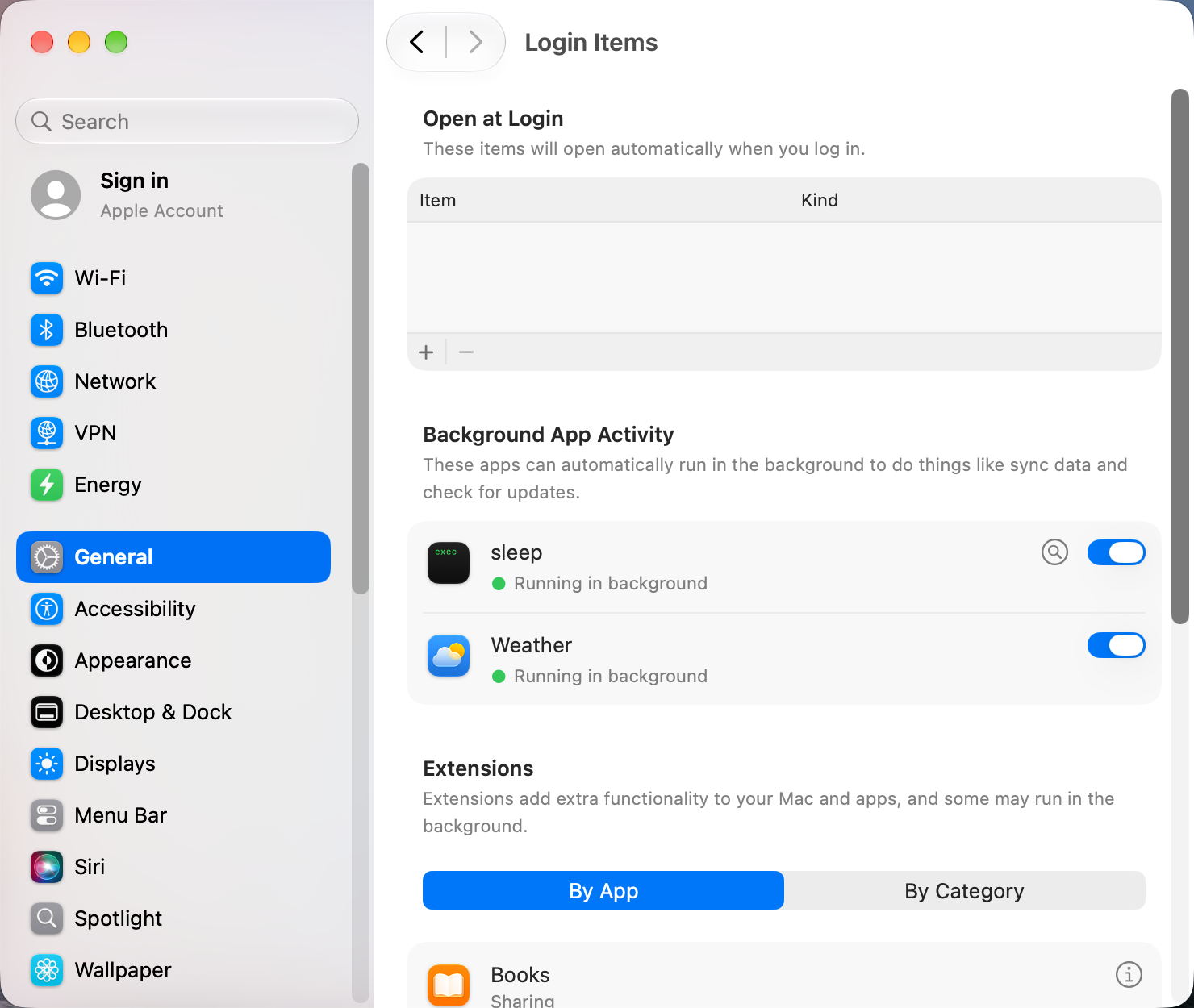
- Open System Settings › General › Login Items & Extensions.
- Under Open at Login, select the app and click −.
- Further down, under Background App Activity (macOS 27, where the pane is titled Login Items) or App Background Activity (Tahoe), switch off helpers for apps you no longer use.
macOS 14 Sonoma
- Open System Settings › General › Login Items.
- Under Open at Login, select the app and click −.
- Under Allow in the Background, switch off what you don't need.
Other places startup apps hide
- The app's own settings. Many apps have an "Open at login" or "Launch at startup" checkbox. If you remove an app in System Settings but it comes back, turn it off there.
- Reopen windows. When you shut down, untick Reopen windows when logging back in so apps open at the last session don't come back.
- The Dock. Right-click an app's Dock icon, choose Options, and untick Open at Login.
Turning off a background item breaks an app
Some apps need their helper to sync, back up or show a menu bar icon. If an app stops working properly, switch its item back on in the same list.
Sources and further reading
- Open items automatically when you log in on Mac · Apple Support
Applies tomacOS 27TahoeSequoiaSonoma
Reader tips
No tips yet. If something else worked for you, or a step looks different on your Mac, add it here.