Mac microphone not working in Zoom, Teams or Meet? Fix it in this order
ZoomTeamsGoogle MeetAirPods
Short answer
Nine times out of ten, the call app doesn't have permission to use the microphone, or it's listening to the wrong one. Check System Settings › Privacy & Security › Microphone and make sure your call app is switched on. Then, in the app's own audio settings, pick the microphone you're actually using.
On this page
1. Give the app permission
- Open System Settings › Privacy & Security › Microphone.
- Turn on the switch next to Zoom, Microsoft Teams, Slack or your browser (for Google Meet, that's Safari, Chrome or whichever browser you use).
- Quit the app completely with Command Q and open it again. The permission only applies after a relaunch.
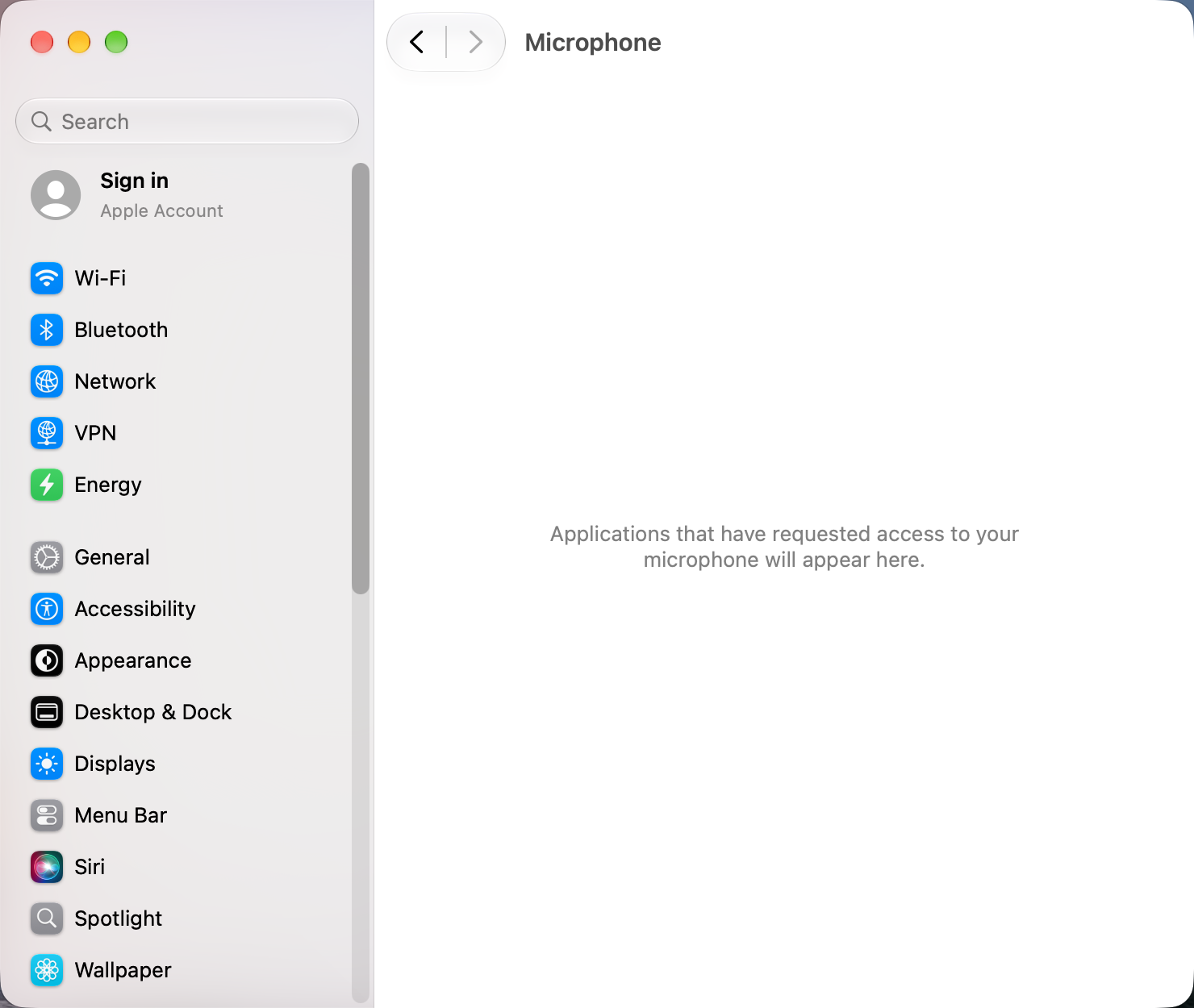
If the app isn't in the list, it hasn't asked yet. Start a test call and accept the prompt.
2. Pick the right microphone
- Open System Settings › Sound and click Input.
- Select the microphone you want and speak. The Input level bars should move. If they don't, the problem is the microphone or its connection, not the app.
- In the call app, open its audio settings (in Zoom, Settings › Audio; in Teams, Settings › Devices) and choose the same microphone rather than "Same as system".
3. AirPods and Bluetooth headsets
- When a call app uses the AirPods microphone, the sound you hear switches to lower quality. That's how Bluetooth headsets work, not a fault.
- To keep good sound, use the Mac's built-in microphone as input and AirPods only for output, in both System Settings and the call app.
- If the AirPods mic isn't offered at all, disconnect and reconnect the AirPods from Control Center. See AirPods won't connect.
4. Restart the audio service
If no app can hear any microphone, restart macOS's audio service. Sound cuts out for a second. You'll need your password.
sudo killall coreaudiodIf that doesn't help, restart the Mac.
5. Other things that block the mic
- Muted in the app. Zoom and Teams have their own mute, separate from the Mac. Look for the crossed-out mic icon.
- Mic Mode. During a call, open Control Center and check Mic Mode. Voice Isolation can cut out quiet speech.
- Another app has the mic. Quit other call, dictation or recording apps.
- Company Macs. A security profile can block microphone access. Ask your IT team.
Other apps that can help
You don’t need any of these for the steps above. They go further in different ways, so pick what fits how you work.
| App | What it does | Price |
|---|---|---|
| SoundSource | Per-app audio devices and volume, plus input control | Paid |
| Krisp | Noise cancelling microphone for any call app | Free tier, paid plans |
| Background Music | Per-app volume and audio routing | Free, open source |
Sources and further reading
- Control access to the microphone on Mac · Apple Support
- AirPods won't work in Zoom · Zoom Community
- macOS Teams microphone issue · Microsoft Q&A